Taskbar Settings
Overview
The Taskbar Settings group is a page which controls the content and appearance of the taskbar at the bottom of the display.
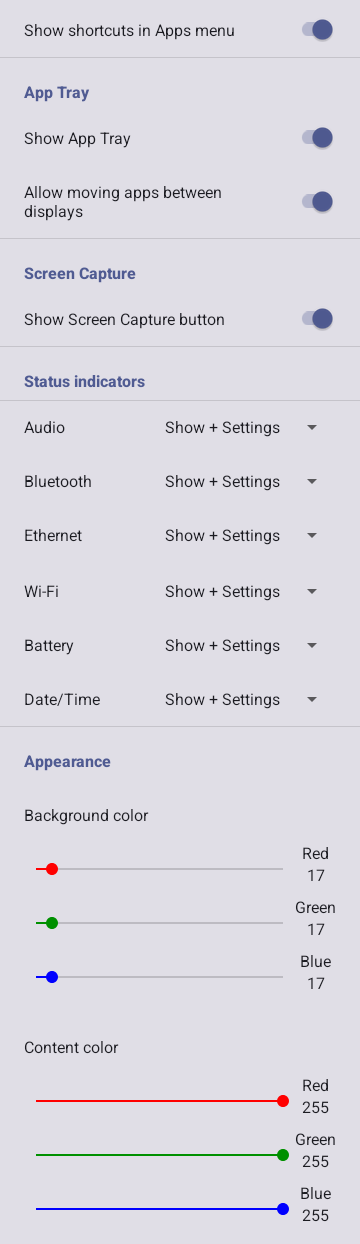
Apps Menu Contents
In addition to listing all installed apps on the device, the Apps menu may also list all desktop shortcuts. These are listed at the top of the menu for quick access. To control display of these items in the Apps menu, toggle the Show shortcuts in Apps menu switch.
App Tray
The visibility and behavior of the App Tray may be configured. The following settings are available:
| Setting | Description |
|---|---|
| Show App Tray | Display the App Tray in the center of the taskbar. |
| Allow moving apps between displays | When enabled, apps can be moved between the external and device displays. For details on how to do this, see App Tray in Features. |
Screen Capture
The taskbar button for capturing a screenshot of the external display may be hidden. To do this, toggle the Show Screen Capture button switch. This does not have any impact on the ability to capture a screenshot using the Print Scrn key on a keyboard (see Screen Capture for details).
Status Indicator Settings
The visibility and behavior of each of the status indicators on the right of the taskbar can be configured independently. The following options are available:
| Option | Description |
|---|---|
| Hide | The icon is not displayed in the taskbar. |
| Show | The icon is displayed in the taskbar. Clicking on the icon has no effect. |
| Show + Settings | The icon is displayed in the taskbar. Clicking on the icon launches a configuration of the related device feature. |
Taskbar Appearance Settings
The background color of the taskbar and color of its contents can be adjusted. Each set of Red/Green/Blue slider controls can be adjusted independently to change the hue of the corresponding taskbar color.