Arrow FOTA Service
The FOTA service comes preinstalled on newer firmware, but can be manually installed on older firmware by upgrading to a newer Espresso package.
Overview
The Arrow FOTA service runs on the mobile computer and is responsible for managing updates of firmware and Espresso packages. Updates can be done automatically or manually.
The Arrow FOTA Settings screen provides controls for monitoring the status of updates and configuring update behavior. It can be reached from the device Settings app under System > System Update.
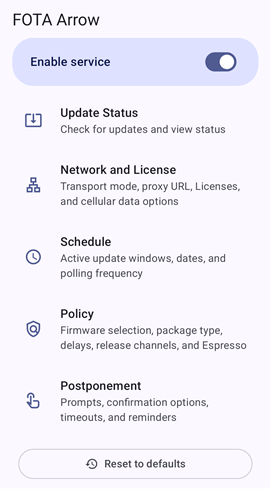
The toggle switch at the top of this screen enables the FOTA service. Disabling the service prevents any automatic updates of firmware or Espresso packages. Details on the remaining configuration settings can be found here.
Update Status
The Update Status group lets you check on the status of an update or initiate one manually, It is split into three sections.
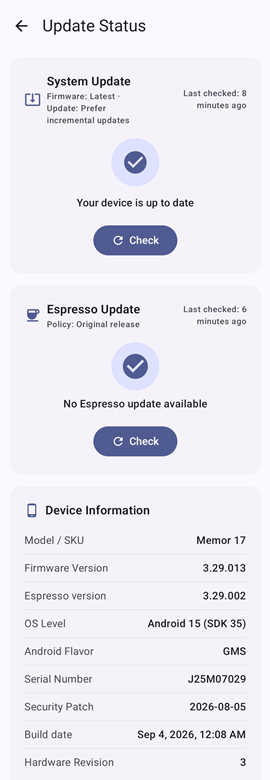
The first two sections show the status of updates to the system (device firmware) and Espresso packages. Each section displays the target version and the last time a check for an update was performed. If an update is in progress, this is also shown. The last section displays general information about the device and firmware image currently installed.
Performing a manual update
Normally, updates are performed automatically at scheduled times. At any time, an update can be initiated by tapping the Check for Updates button on either of the firmware or Espresso sections. The FOTA service will attempt an update using the policy currently defined by the settings screen. Details on the policy settings can be found here.
Troubleshooting
If Arrow FOTA is having difficulties performing an update, here is a list of things to check:
Server cannot be reached:
- Check network connections. The device must be connected to a network that can reach the proxy or cloud server.
- Check the proxy server address. When using a proxy server, confirm that the IP address of the proxy server is correct.
- Check the license(s). A valid Shield license is required regardless of whether a proxy server is used. If a proxy server is not used, a valid Arrow FOTA license is also required.
Automatic updates do not work:
- Check the polling window(s). At least one polling window must be defined in order for automatic updates to function. If updates are not taking place when you expect, check the polling window list and confirm the days/times allowed for updates to take place.
- Try performing a manual update (see above) to confirm that the device can reach the server (proxy or cloud).
Available update is not being applied:
- Check the update policy. An update might not be applied because it does not match the criteria defining what is allowed. Reasons to prevent an update include:
- The update would change the Android OS. Enabling
Allow OS updateswill unblock this. - The update involves more than just a security patch. Enabling
Allow maintneance release updateswill unblock this. - The update was released too recently.
Update delayspecifies a delay before an update is eligible. Setting the delay to zero will allow the update as soon as it is available. - Updates are only permitted while charging. Disabling
Install only while chargingwill permit updates even when the device is not connected to charging source (dock or cable).
- The update would change the Android OS. Enabling