Arrow FOTA Settings
Overview
The following sections detail the various configuration settings of the FOTA service. These screens can be reached from the main Arrow FOTA Settings screen.
Network and License Settings
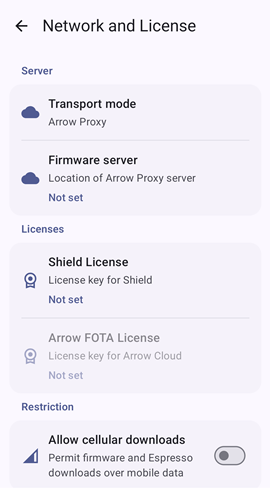
Tapping the Network and License group presents a screen which controls the connections to the FOTA server. The following settings are available:
| Setting | Description |
|---|---|
| Server | |
| Transport mode | Selects which server will be used for OTA downloads. |
| Firmware server | This is the IP address of the Arrow FOTA Proxy server. It is only used when the Transport mode specifies use of the proxy server. |
| Licenses | |
| Shield License | This is the Shield license key used by the FOTA service to authorize firmware updates on the device. A valid key is required for FOTA operation regardless of which server is used. |
| Arrow FOTA License | This is the license used to access the Arrow FOTA cloud server. A valid key is required for FOTA operation only when the Transport mode specifies use of the cloud server. |
| Restriction | |
| Allow cellular downloads | Allows downloads to be performed over a cellular network connection. |
Schedule Settings
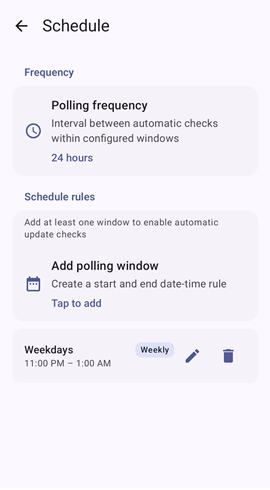
Tapping the Schedule group presents a screen which defines when the FOTA service is allowed to automatically check for updates. The following settings are available:
| Setting | Description |
|---|---|
| Frequency | |
| Polling frequency | Within each polling window (described below), this is the time period between checking for updates. |
| Schedule rules | |
| Add polling window | Tap this to add a new polling window. See the next section for details. |
Polling Windows
The FOTA service is only allowed to automatically check for updates during specific times, called polling windows. The bottom of the screen displays a list of all defined polling windows. It is valid to not define any polling windows, but these are required for automatic updates to function.
Each polling window defines the days and times when the FOTA service is allowed to perform automatic updates. It is intended that these windows specify times when the device can tolerate the use of any additional resources required by the update (such as outside of a work shift). Multiple windows may be defined, which allows for different schedules depending on the day of the week and/or time of year.
Within a polling window, the service will periodically check for updates. The frequency of these checks is determined by the Polling frequency setting.
Add a Polling Window
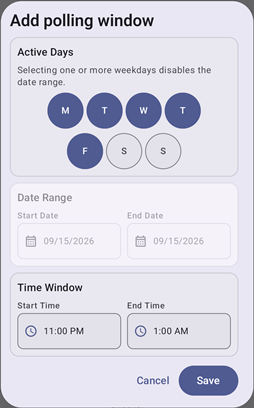
When you add a polling window, a dialog is displayed with controls to specify the days and times of the window.
| Setting | Description |
|---|---|
| Active days | Allowed days to check for updates. If any days are selected, polling may take place on a weekly basis. When no days are selected, polling may take place during the range of dates. |
| Start date | First date of the polling window. This is valid only if no Active days are selected. |
| End date | Last date of the polling window. This is valid only if no Active days are selected. |
| Start time | Earliest time during the specified days for the polling window. |
| End time | Latest time during the specified days for the polling window. If the end time is earlier than the start time, it refers to a time on the following day. For example, times of 11:00 PM and 1:00 AM specify a time frame that starts at 11:00 at night and continues for two hours until 1:00 in the morning the next day. |
Edit a Polling Window
To edit a polling window, tap the Edit icon ( ) for its list entry. You will see the same dialog as when adding a polling window. Make any desired changes and tap Save to commit the changes.
Delete a Polling Window
To remove a polling window from the list, tap the Delete icon ( ) for its list entry. You will be asked to confirm the deletion.
Policy Settings
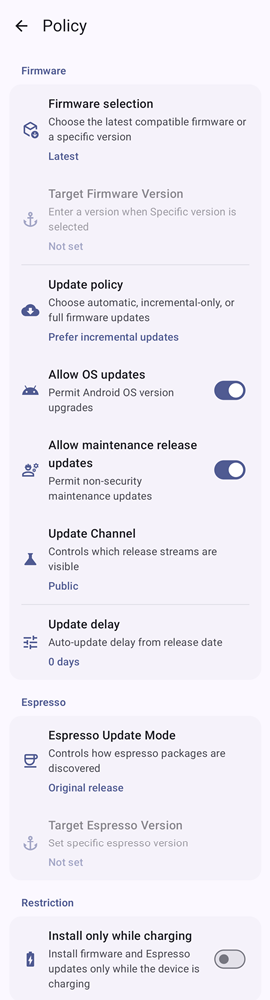
Tapping the Policy group presents a screen which determines how the FOTA service selects firmware and Espresso versions when checking for updates. The following settings are available:
| Setting | Description |
|---|---|
| Firmware | |
| Firmware selection | Specifies which firmware version will be selected for updates.
|
| Target firmware version | When a specific firmware version is selected, this is the version string to use. Example: 3.27.018 |
| Update policy | Determines whether smaller incremental update files may be used when updating the firmware.
|
| Allow OS updates | Permits an update which involves an upgrade of the Android OS version. |
| Allow maintenance release updates | Permits an update which is includes non-security content (new features). |
| Update channel | Limits updates to the specified channel(s).
|
| Update delay | The number of days after an update is released before it is allowed to be used. This can be used to delay updating to the latest firmware upon its release. |
| Espresso | |
| Espresso update mode | Specifies which Espresso package is selected for update.
|
| Target Espresso version | When a specific Espresso version is selected, this is the version string to use. Example: 3.27.018 |
| Restriction | |
| Install only while charging | Allows updates when the device is not attached to a charging power supply. |
Postponement Settings
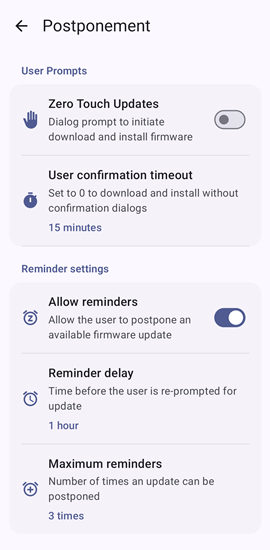
Tapping the Postponement group presents a screen which controls the display of any user confirmation dialogs when the FOTA service initiates an update. The following settings are available:
| Setting | Description |
|---|---|
| User Prompts | |
| Zero touch updates | Allows updates to be performed without user interaction. When disabled, a dialog will be presented for the user to confirm the update before it begins. |
| User confirmation timeout | Specifies how long a confirmation dialog will wait for a user response before proceeding with an update automatically. |
| Reminder Settings | |
| Allow reminders | Allow the user to dismiss the confirmation dialog and be reminded at a later time. |
| Reminder delay | Specifies how long to wait between confirmation dialogs. |
| Maximum reminders | Specifies the number of confirmation dialogs that are displayed before an update is performed automatically. |
Reset Settings
Tapping on Reset settings in the initial settings screen will reset all the FOTA settings to default values (after confirmation). Here is a list of all the settings and their default values.
| Setting | Default value |
|---|---|
| Enable service | Enabled |
| Network and License | |
| Transport mode | Arrow Proxy |
| Firmware server | Empty |
| Shield License | Empty |
| Arrow FOTA License | Empty |
| Allow cellular downloads | Disabled |
| Schedule | |
| Polling frequency | 24 hours |
| Active days | None selected |
| Start date | Current date |
| End date | Current date |
| Start time | Current time |
| End time | One hour from current time |
| Policy | |
| Firmware selection | Latest |
| Target firmware version | Empty |
| Update policy | Prefer incremental updates |
| Allow OS updates | Enabled |
| Allow maintenance release updates | Enabled |
| Update channel | Public |
| Update delay | 0 days |
| Espresso update mode | Original release |
| Target Espresso version | Empty |
| Install only while charging | Disabled |
| Postponement | |
| Zero touch updates | Disabled |
| User confirmation timeout | 15 minutes |
| Allow reminders | Enabled |
| Reminder delay | 1 hour |
| Maximum reminders | 3 times |